
Online booking from a button or link on your website
Vetocare Appointment requests let clients book online, tied straight to your own calendar. Simple to set up, with automatic confirmations for your clients.
9/10/2021 • 4 min

Booking by phone or e-mail eats time, especially the back and forth about which days and times are free. Putting a form on your website is an option, but it gets complicated as soon as you want your calendar involved too.
And it gets properly complicated when you want to take bookings for several practitioners in the same practice. We gave that some thought, and there is now an easier way.
Appointment requests in Vetocare
If you already use Vetocare you can set up your online calendar yourself and start taking bookings straight away. The feature is called Appointment requests, because a request only becomes an appointment once you have approved it and placed it in the calendar.
How do I start taking online bookings?
Getting started is fairly simple, though there are plenty of options to shape it around your practice. We will keep it simple here and start with the basics. First, switch Appointment requests on.
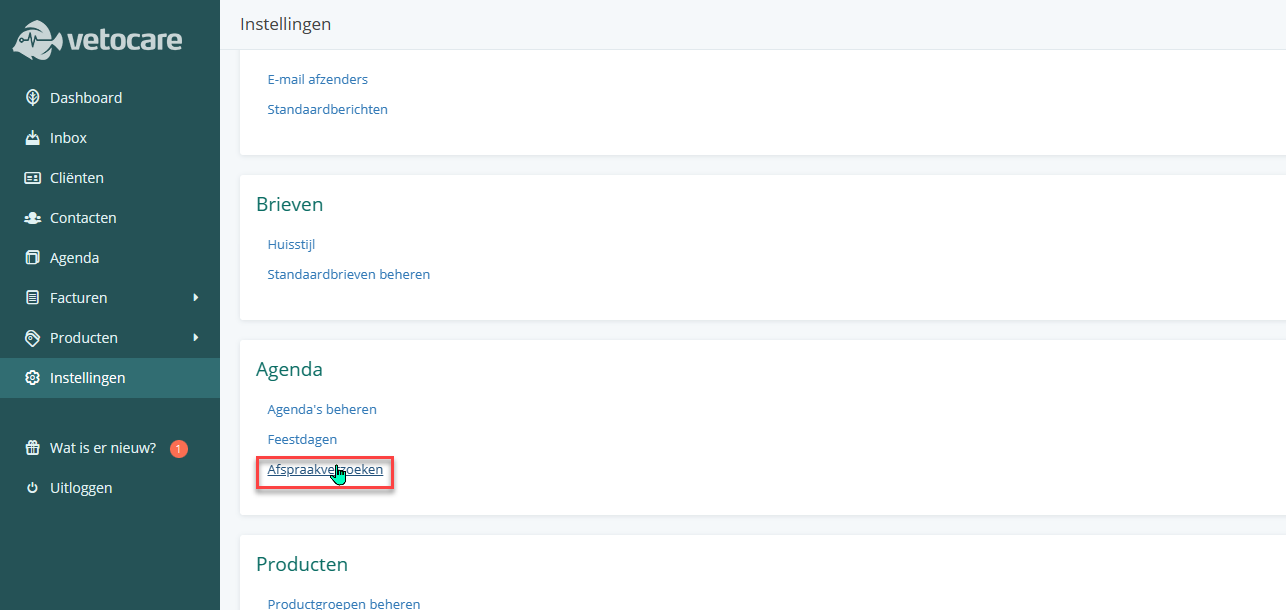
In the Settings menu, go to Calendar and then Appointment requests.
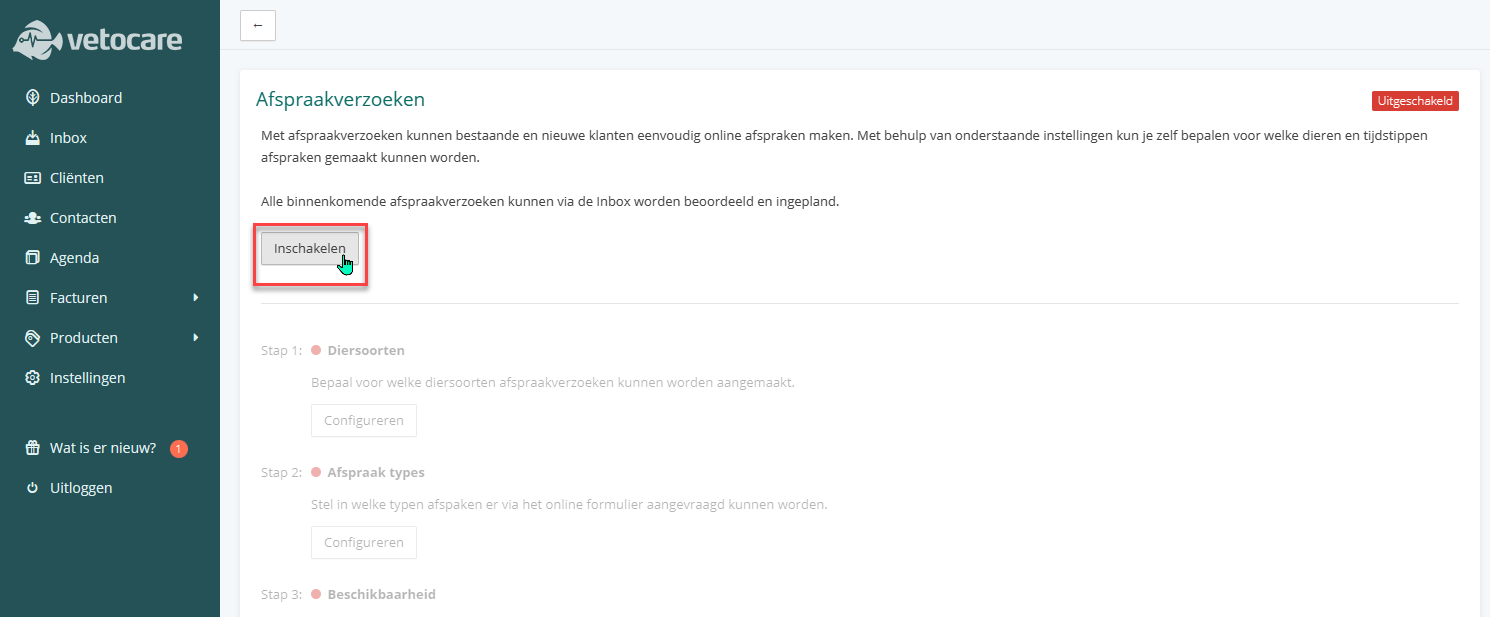
We start by enabling appointment requests. No need to worry: nobody can book anything until you have actually shared the link on your website or social media.
Choosing species
You can allow appointment requests for particular species only. Click Configure at step 1 to set them.
Creating appointment types
Click Save and move on to Appointment types. Here you decide what your clients can choose from: a consultation, an aqua trainer session, a home visit for a horse. For now we keep it simple and pick a 15-minute consultation.
Setting availability
The next step is when you are available to take online bookings. You can add several blocks of time and tie each one to particular species, appointment types or practitioners, so you could set aside a day or a half-day for one kind of treatment. We will go deeper into that another time. For now we pick standard working days, nine to five.
Time slots
Vetocare creates the slots itself, based on the duration and the availability you set. Those are the slots your client picks from. In the Time slots step you can set a few preferences.
First, how far in advance someone can book. The default is three days, which is fine for now. There is also a setting for the furthest ahead — a year by default, which suits most practices.
We let Vetocare fill the slots itself, so a consultation every 15 minutes: 9:00, 9:15, 9:30 and so on. You can also have every appointment start on the hour or the half hour — useful if you want 45-minute treatments starting hourly with a quarter of an hour in between. Here we keep the defaults and move to the last step.
Confirmation message
Vetocare can send an automatic confirmation with the final date and time, and include your practice details. You edit the content on the left and see a preview of the message on the right.
We keep the standard message and click Save.
Copying the link
Back in the overview you can see that every step is done and that the system has generated a link. Copy it and put it on your website, or share it with your clients and anyone thinking of becoming one.
The link stays available, so you can always fetch it again from the settings. Do try it out yourself first.