
Send a form with a standard message
Add forms to your e-mails automatically. Learn how to include a report template in standard messages, appointment confirmations and reminders.
10/8/2020 • 4 min

From now on you can include a report template in a standard message in Vetocare. When you send an e-mail using that standard message, Vetocare automatically creates a report and adds a personal link to the e-mail.
This works not only for e-mails you send by hand, but also for reminders, appointment reminders and appointment confirmations. A topical example is adding a coronavirus health check to new appointment confirmations. In this article we show you how.
Add a report template
To create a new template, go to Settings and then Reports > Manage templates.
You will see the list of existing templates. Click Add template.
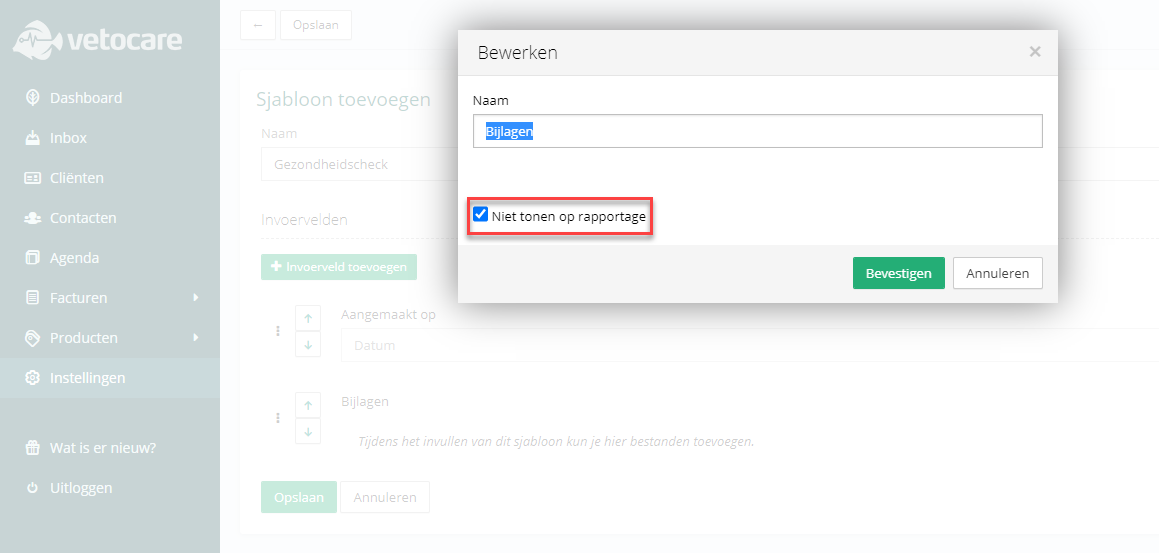
The first thing we do is hide the Created on and Attachments fields, because we do not need them for this example.
Next we add a number of yes/no questions. We follow the questions published by the Dutch government, but you can fill them in however you like.
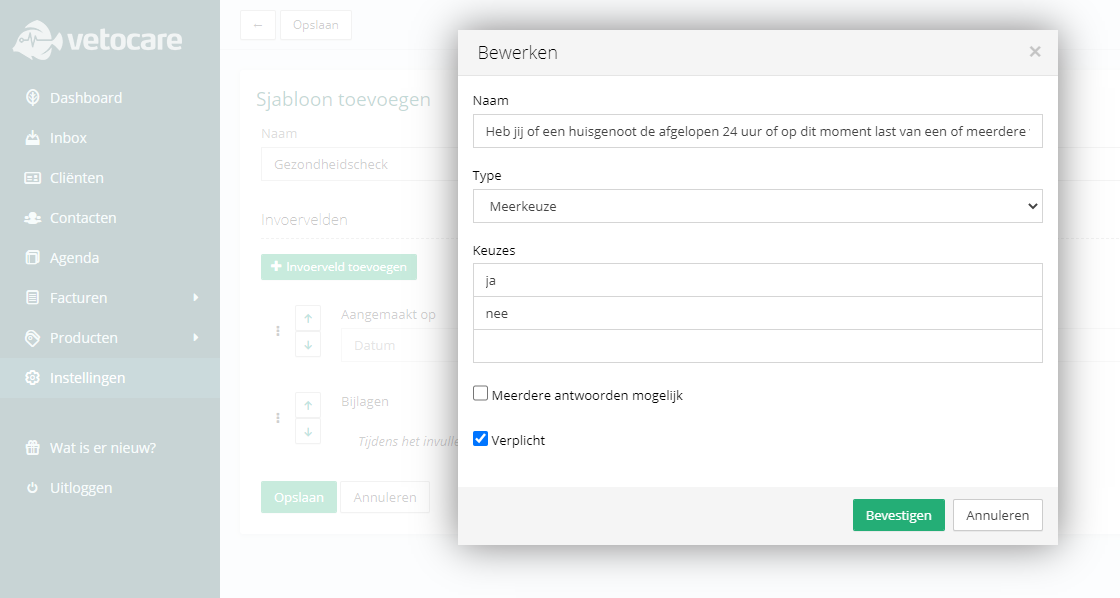
Once all the questions are in, we save the template as Health check.
Add the template to a standard message
To add the template, we go to Standard messages. You will find them in Settings under Emails > Standard messages.
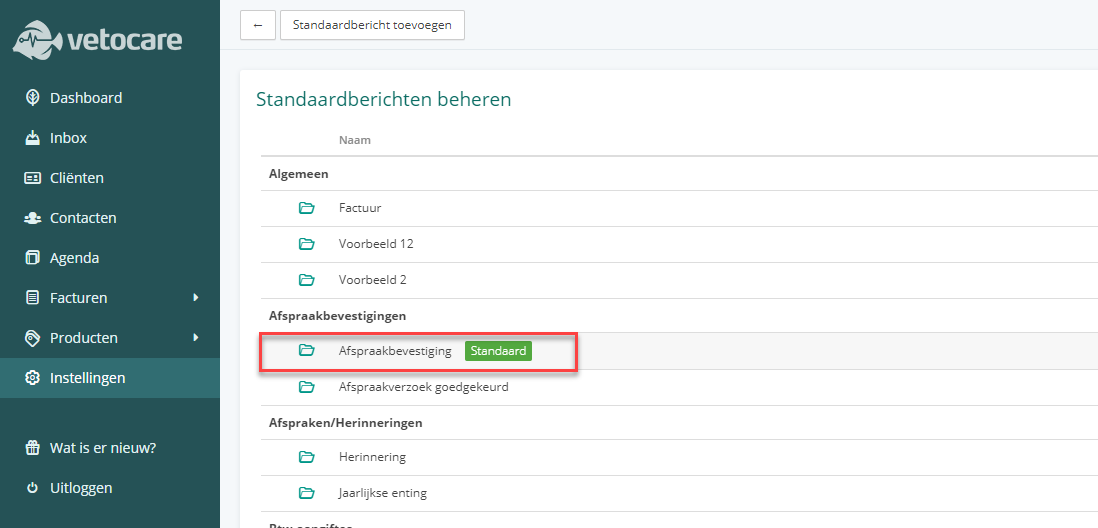
For this example we pick our default Appointment confirmation.
We leave the rest of the message as it is, because it still does the job. We only add a line asking the client to fill in our Health check. After writing the sentence, we click the new New report button and select the Health check.
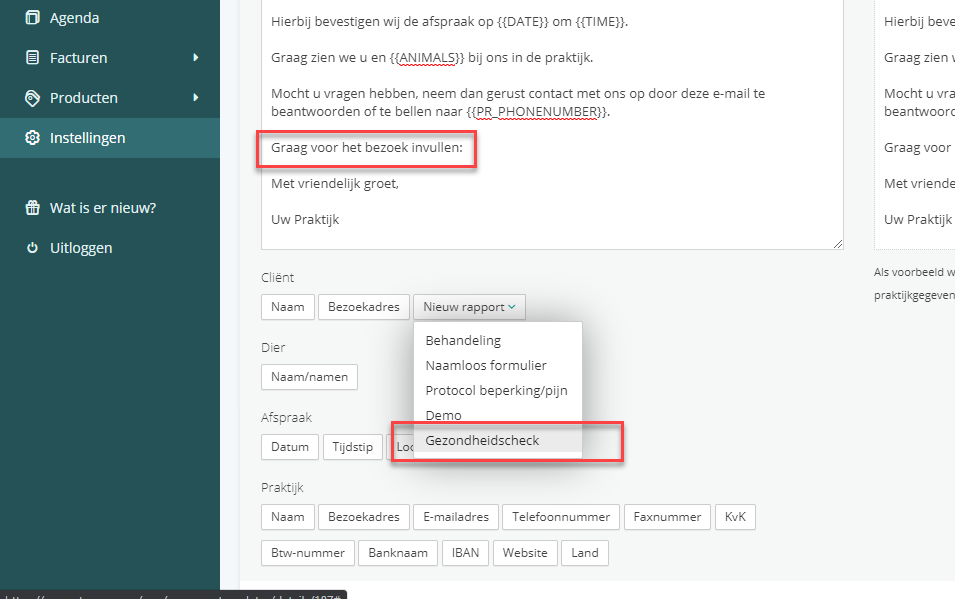
If all went well, a dynamic field (a short piece of code) is added after the new sentence. This code is unique to each form, so do not copy the code from this example — it will not work.
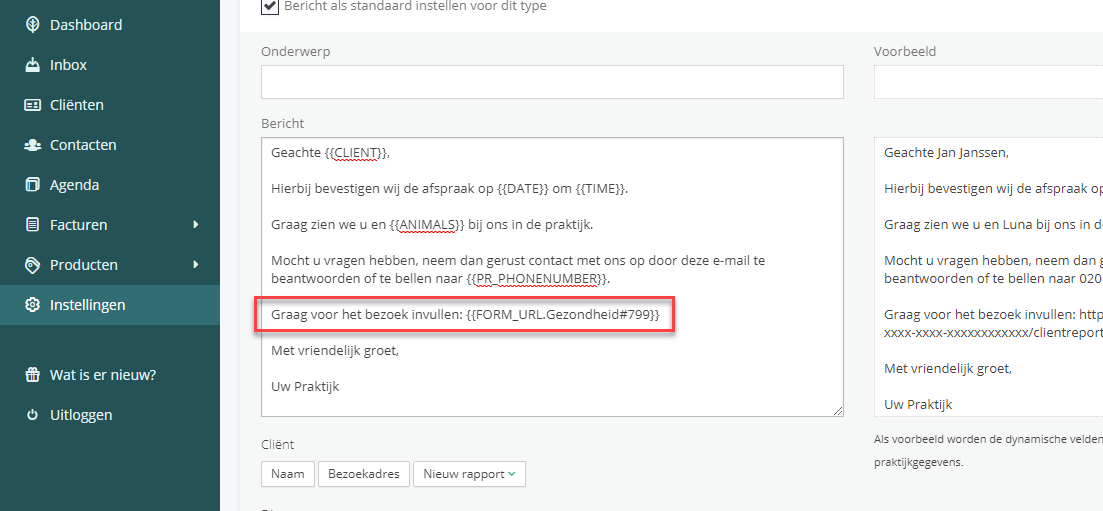
We then save the standard message and look at how to use it.
Use the standard message
Because our example message is an appointment confirmation, we first go to the calendar and create a new appointment. While entering the appointment, we click Add confirmation.
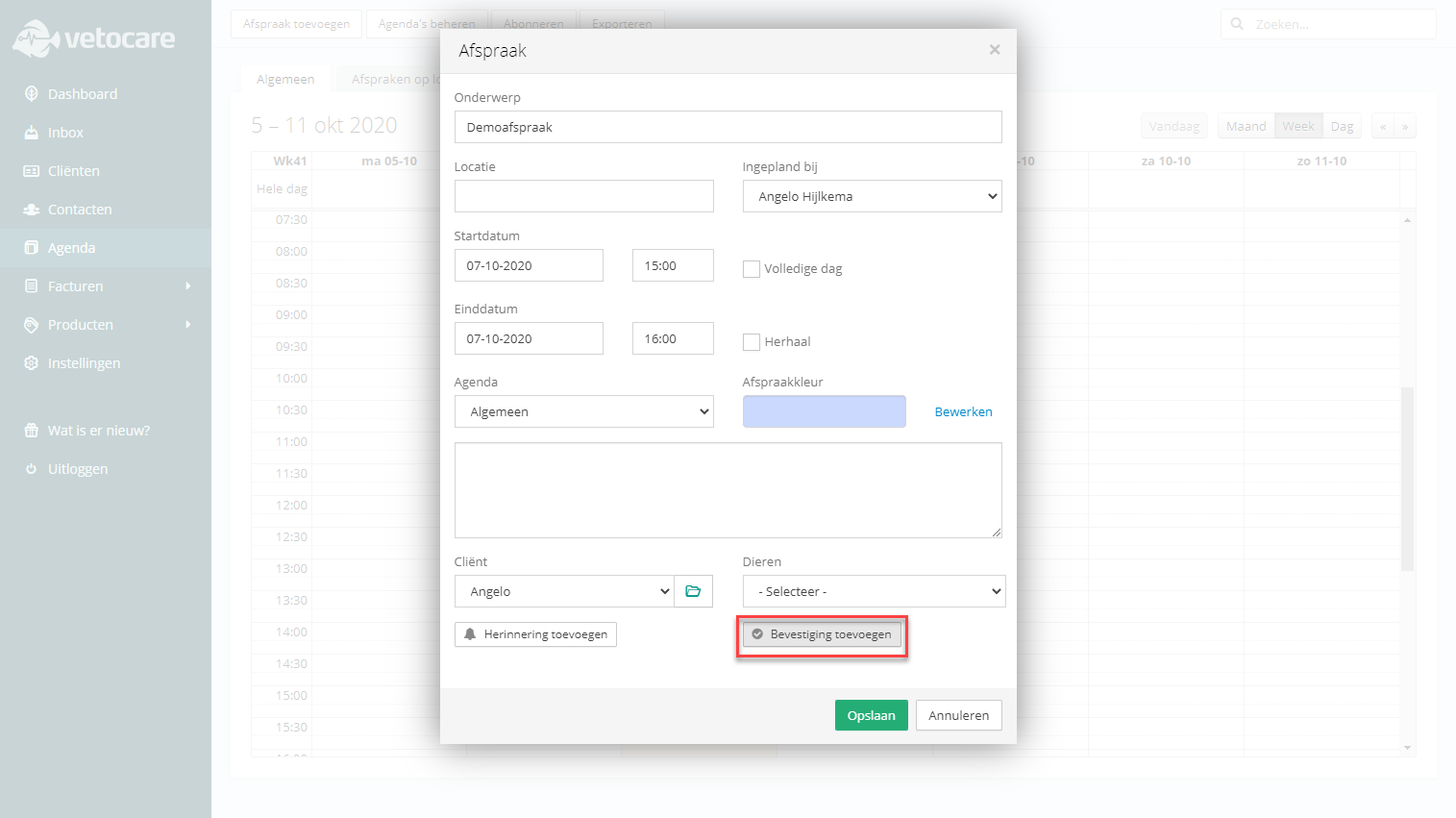
Because our appointment confirmation is ticked as Default in the standard messages, it is already filled in when we add the confirmation.
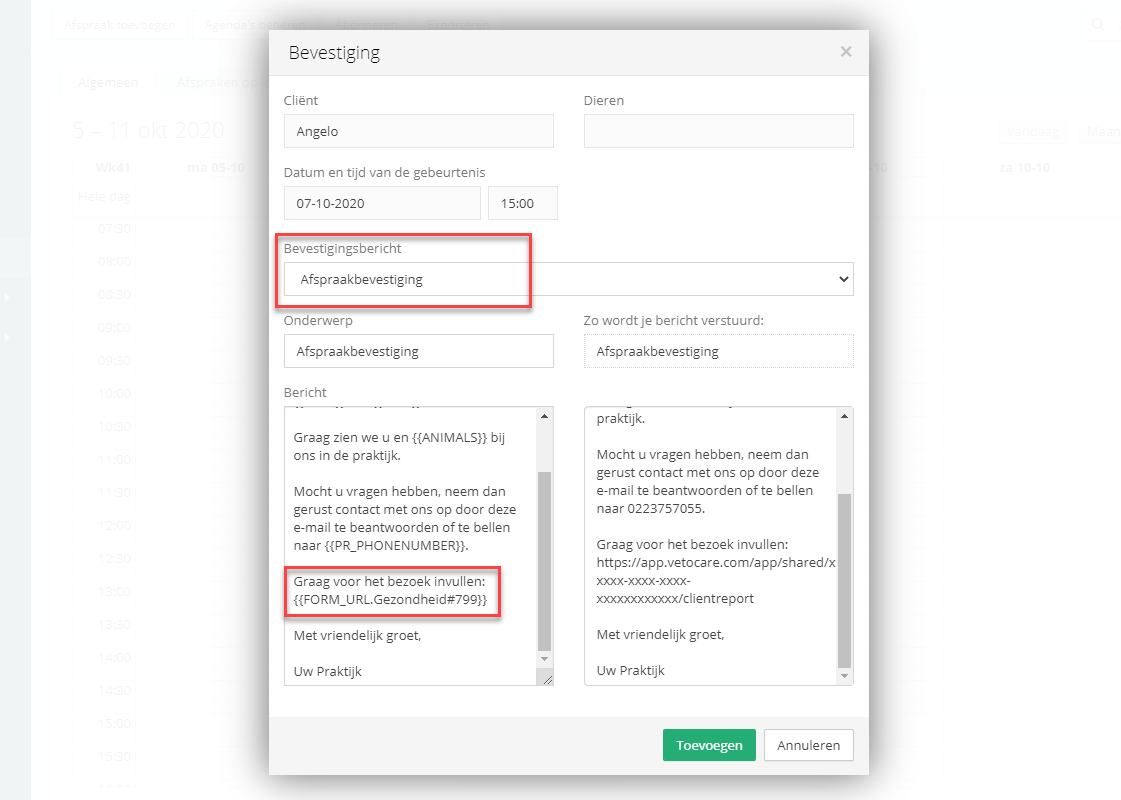
So we can already see the newly added line, including the piece of code. There is nothing else to change, so we click Add and then save the new appointment.
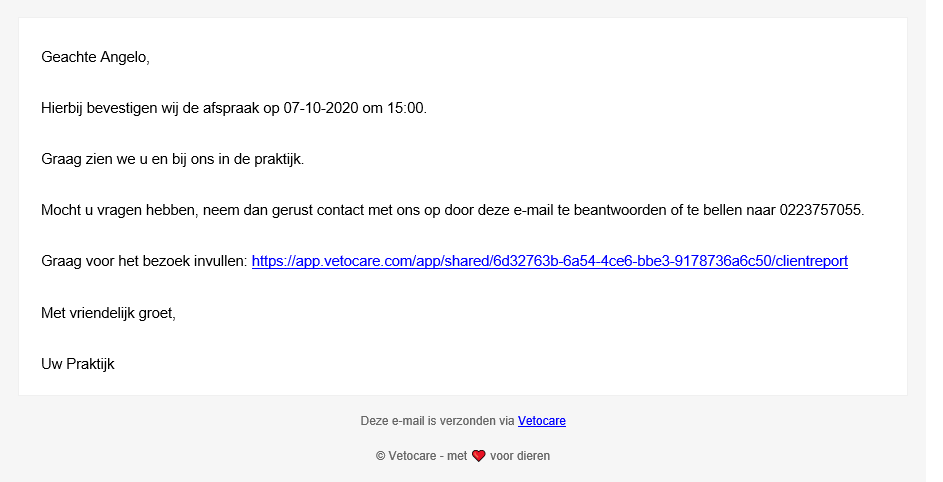
After saving, the client almost immediately receives an e-mail with a personal link to the shared report — in our case, the health check.
Filling in the form
Before the appointment, the client can fill in the form by clicking the link in the e-mail. The form opens in a new window and can be sent once all required fields are filled in. After sending, the link can no longer be used.
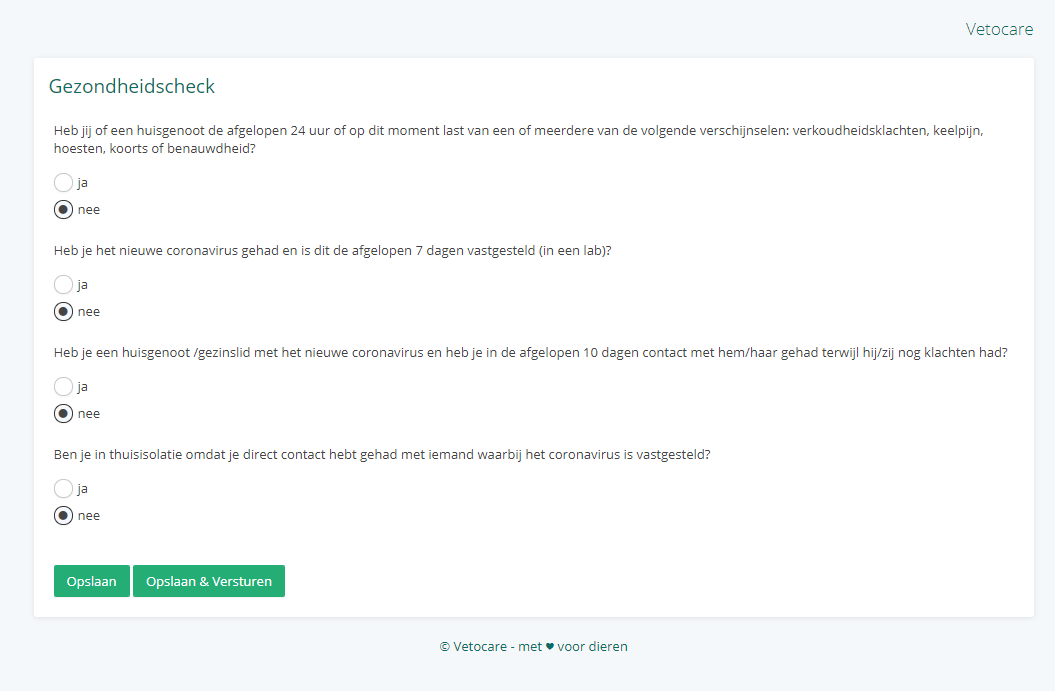
Vetocare then shows the completed form in the Vetocare Inbox.

From the Inbox you can open the form and accept it, just like any other shared report.
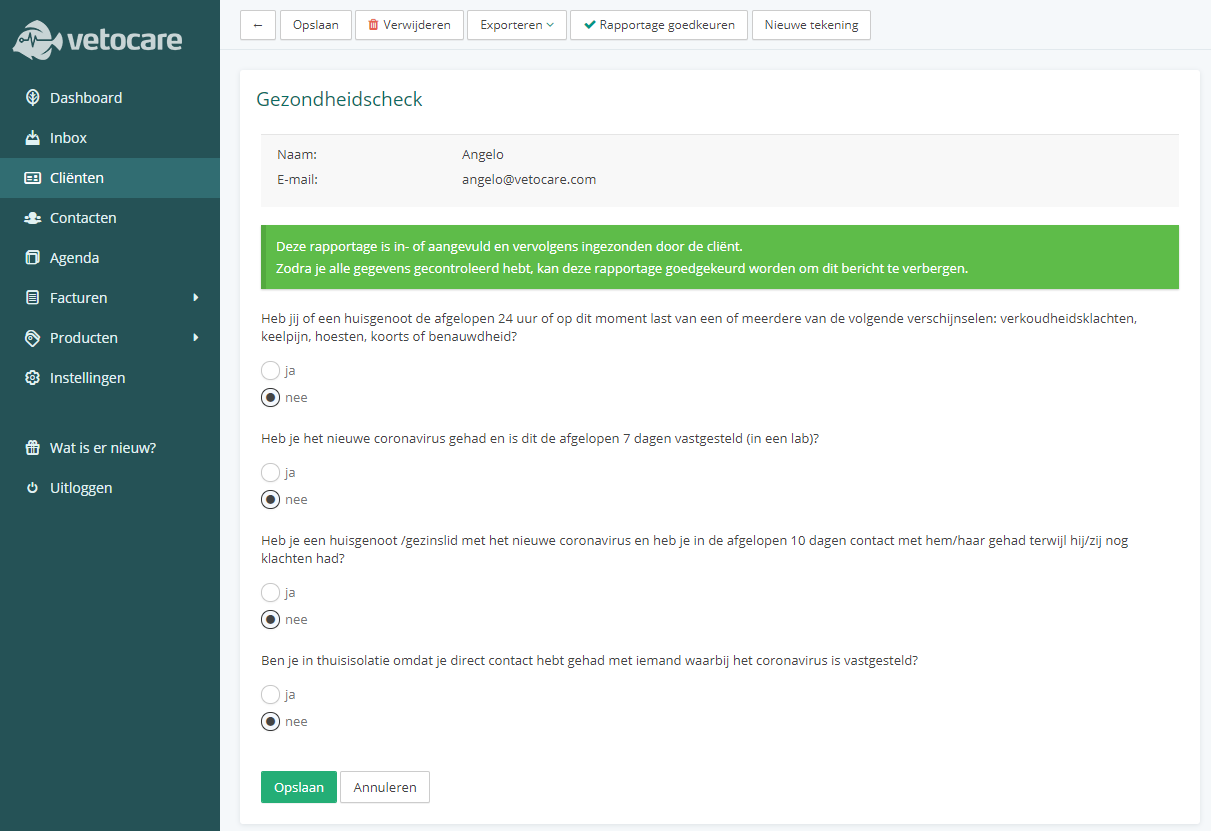
The report is then added to the client file automatically.
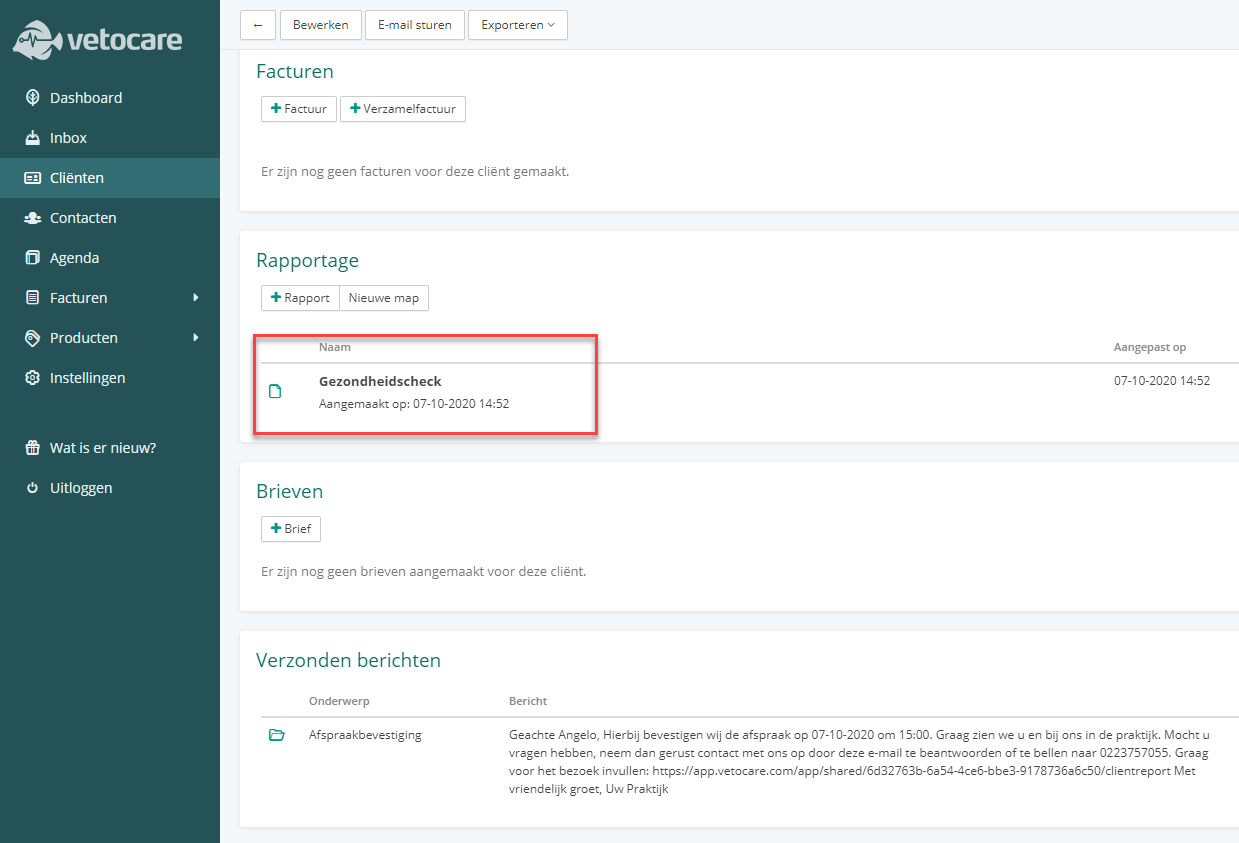
Of course this is just one example of what you can do with this feature. You could also ask for a review when you send an invoice, or include a checklist with an appointment reminder.